The Analog Paradox: Satellite Precision in a Paper World
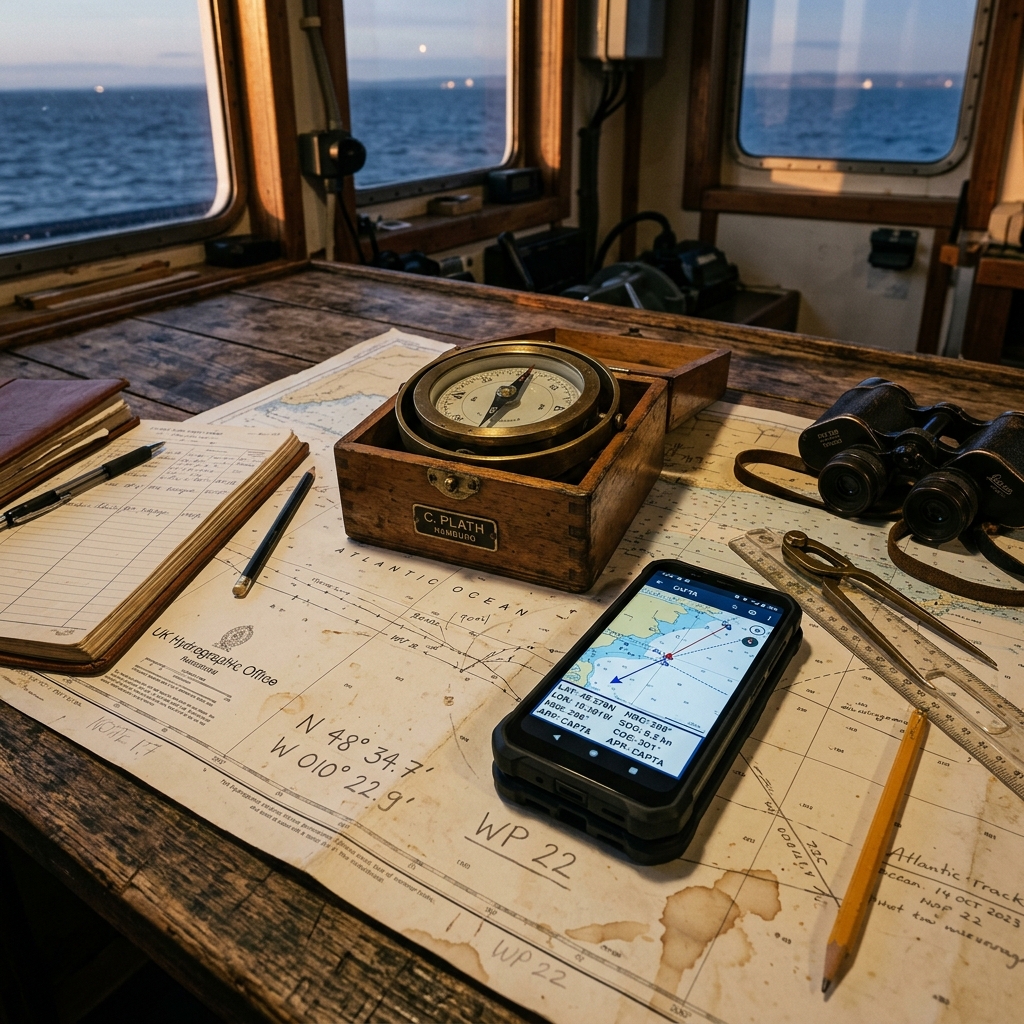
It is one of the most frustrating situations in the field: you have a critical location noted in a notebook from three years ago, or someone has passed you a coordinate over the radio and you've written it down on a piece of wet paper. The GPS system in your pocket has centimeter precision, but the "interface" between the paper and your mobile is a slow, archaic process and, above all, prone to catastrophic errors.
Moving coordinates from paper to GPS should not be a typing task. In this technical article, we will explore how CAPTA's computer vision and OCR (Optical Character Recognition) have eliminated the need to type complex coordinates, protecting the integrity of your field data in the most efficient way possible.
The Cost of Human Error: Why you shouldn't type your coordinates
When we talk about GPS coordinates in decimal format, we are handling strings of up to 15 characters. Usability science indicates that the error rate in manual transcription of long numerical strings under conditions of stress or fatigue (common at sea or in the mountains) exceeds 30%.
The Problem of Visual Ambiguity:
- 3 vs 8: In a notebook with mud or under dim light, a poorly drawn 3 is identical to an 8.
- 1 vs 7: The difference is sometimes a single oblique stroke.
- Decimal point: Omitting a decimal point in a DD coordinate moves you thousands of kilometers.
A single-digit error in the fourth decimal place takes you 11 meters away from your target. An error in the second decimal place takes you 1.1 kilometers away. If you are looking for a specific diving spot or a geological sample, that difference means a whole day's work (and even weeks) is lost due to a keystroke error.
The Science of Technical OCR: How CAPTA detects coordinates in the real world
Unlike standard document scanners that look for words in a dictionary, CAPTA's engine has been optimized for Technical OCR. This means our algorithms are specifically trained to recognize latitude and longitude patterns, degree/minute/second symbols, and the unique syntax of GNSS systems.
Challenges we have overcome:
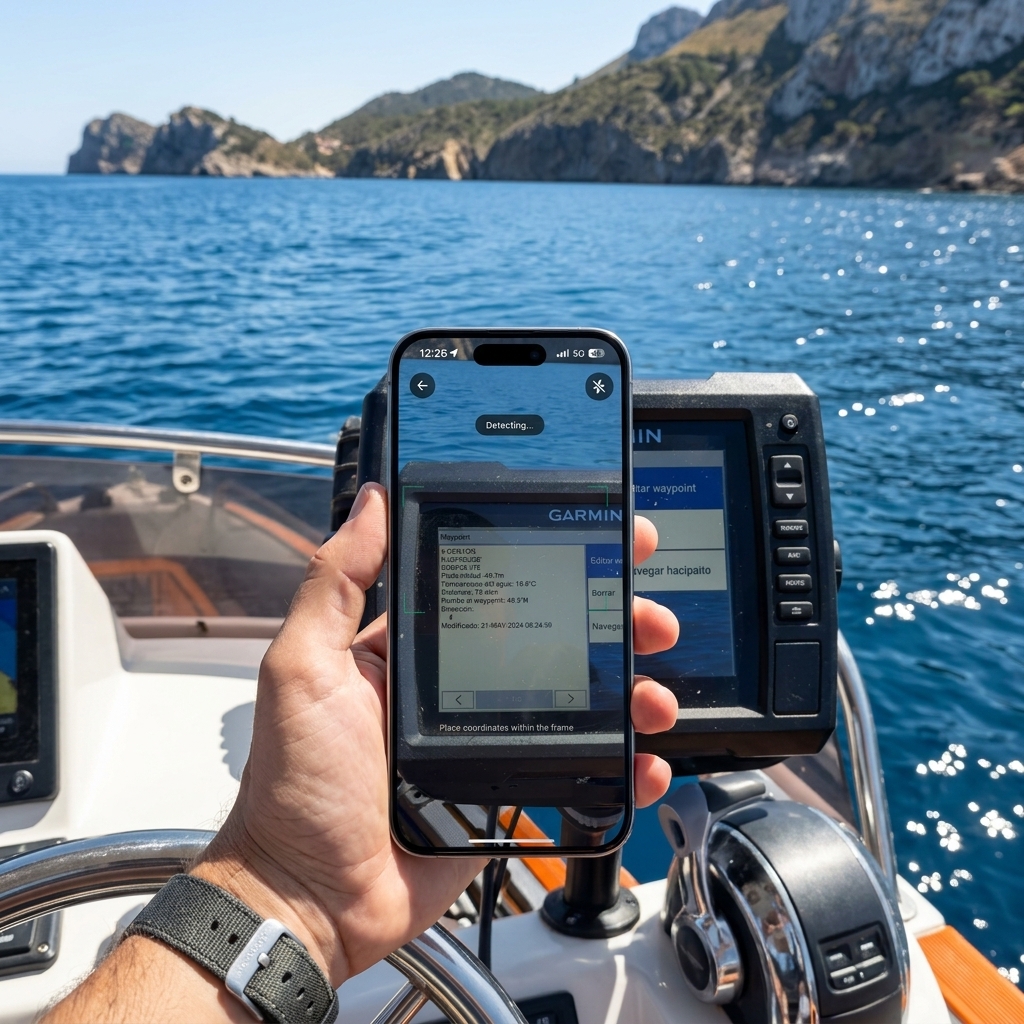
- Screen Reflections: As you can see in our app's capture on a Garmin plotter, CAPTA is able to read through the glass of other devices, compensating for sun glare and panel distortion.
- Handwritten Notebooks: The system recognizes handwritten characters as long as they maintain a minimum structure, allowing for the rescue of "field notes" that previously required minutes of concentration to be digitized.
- Local Processing (Edge Computing): All recognition is performed within your mobile processor. We do not send photos to any server, ensuring the system works in areas with zero coverage.
Workflow: How to digitize a fleet of Waypoints in seconds
Imagine you have to transfer 50 points of interest from an old paper map or a printed list after an expedition. The traditional method would take at least 20 minutes of intense typing, with the consequent risk of exhaustion and error.
The CAPTA Scanning Protocol:
- Focus and Detection: You point the camera at the coordinate. The system instantly tracks numerical patterns.
- Format Validation: CAPTA automatically detects if the coordinate is in Decimal Degrees (DD) or Degrees, Minutes, and Seconds (DMS), eliminating the need for manual pre-conversions.
- Metadata Capture: When scanning, the point is saved directly with a photo of the original context, creating a visual "chain of custody": you will be able to see the original paper the data came from in the future.
This reduces the digitization time from 25 seconds to less than 2 seconds per point.
The Risk of Analog Frustration
The "look at the paper and then the keyboard" method generates unnecessary cognitive load. In emergency situations, this fatigue can lead to erroneous operational decisions. Using OCR technology is not just a convenience; it is an active safety measure. By automating data entry, you free your mind to focus on what matters: navigation and the safety of your team.

The Anatomy of a Transcription Error: Why we fail so often
The human eye is a magnificent evolutionary tool for recognizing faces and predators, but it is surprisingly inefficient at processing long strings of similar alphanumeric characters. In field conditions (movement, lack of light, humidity), the brain tends to "complete" missing information based on expectations, not reality.
A technical study on surveying workflows revealed that a fatigued technician has a 12% probability of confusing a comma for a period or a 5 for a 6 in a 10-minute session. By delegating this task to CAPTA's computer vision engine, we eliminate this cognitive bias. The machine does not "expect" to see a number; it analyzes the pixel matrix and compares it with thousands of technical font and calligraphy models, ensuring 99.9% fidelity in capture.
Professional Workflow Integration: From Folder to GIS
For geologists, marine biologists, and road engineers, the "field notebook" is a valuable legal and technical document. However, its value is lost if the data remains trapped on paper. The digitalization process is often the "bottleneck" of any research project.
By using CAPTA to digitalize these coordinates, you are not only saving time, but you are also creating an immediate digital backup. Our app allows you to export these points directly in formats compatible with professional GIS systems (such as ArcGIS or QGIS) or even KML files for Google Earth. This means the gap between "taking a note in the forest" and "seeing the map in the office" is reduced to a single scan.
Data Heritage Preservation: Saving the past
Thousands of expeditions and points of interest are stored in paper archives that are physically disappearing due to humidity and wear over time. Manually digitalizing these files is a Herculean task that few teams can afford.
CAPTA's fast digitalization technology allows a single person to "scan" and geolocate hundreds of historical records in a single afternoon. By converting these analog coordinates into digital GPS assets, we are ensuring that the knowledge accumulated during decades of exploration is not lost due to the degradation of the physical support.
CAPTA Precision Verification Protocol (PVP)
For users requiring an industrial precision standard, we recommend our three-step protocol when scanning:
- Lens Cleaning: Ensure the camera is clean to avoid OCR artifacts.
- Zenith Angle: Scan as perpendicular as possible to the paper to avoid perspective distortions that could confuse the algorithm in UTM coordinates.
- Context Confirmation: CAPTA will always show you the detected number over the real image; take half a second to confirm that the yellow-highlighted detection matches the paper stroke.
FAQ: Frequently Asked Questions about Coordinate Digitization (Faq)
Can CAPTA read coordinates that are very blurred or wet on my paper?
Our algorithm is designed to handle a high degree of visual noise, but OCR integrity depends on the clarity of the numbers. However, what makes CAPTA special is that if the system is in doubt, it will show you the visual capture for you to validate the data in a second, acting as a safety filter. By eliminating the typing of 15 characters and substituting it with a simple visual validation, we reduce the human error margin to practically zero.
How do I know if the coordinate I scanned has been saved with the correct precision?
CAPTA not only reads the numbers but analyzes the full decimal syntax. By using our technology, the system blocks the entry if it detects a critical decimal missing for technical precision. This ensures that if you scan a paper coordinate, the resulting digital asset will maintain the maximum resolution the original data allowed, protecting the quality of your waypoint database.
What if the format on paper is different from the one I want to use on my mobile?
That is one of the greatest advantages of CAPTA. The scanning system is agnostic to the visualization format. You can scan a coordinate in DMS (Degrees, Minutes, and Seconds) format from an old map, and the App will instantly convert it to DD (Decimal Degrees) or UTM if needed. CAPTA handles all the heavy math in the background so you only have to worry about reaching your destination.